3.1.2.Installation (64-bit)
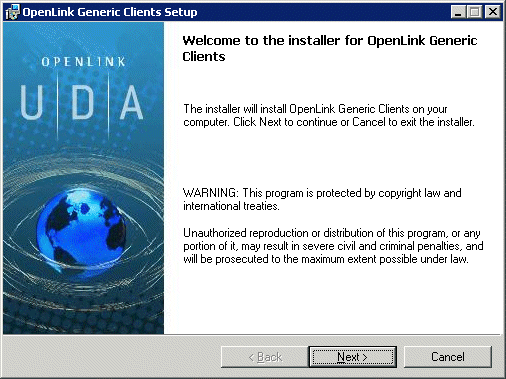
The OpenLink Multi-Tier Generic ODBC client is distributed in a single windows msi file. Simply run the required installer wao3zzzz.msi or wio3zzzz.msi for Opteron (AMD64) and Itanium (IA64) respectively, which will display the following Welcome message:
Figure3.1.win64instmt1.gif
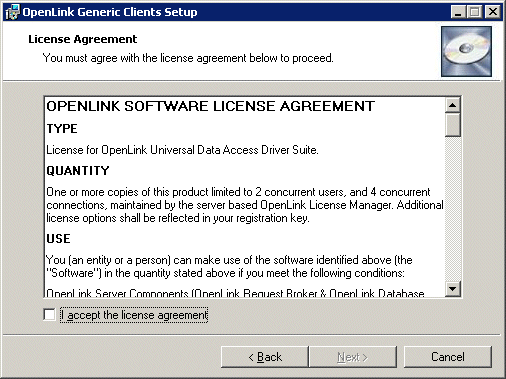
The next screen will display the License Agreement for use with the OpenLink Multi-Tier Driver product. Please read this. If you agree, then select the accept checkbox and continue:
Figure3.2.win64instmt2.gif
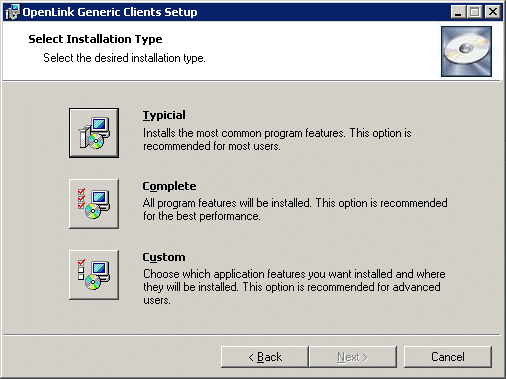
Chooses the type of installation to perform, noting that typical and complete will immediately install the default or complete components respectively, otherwise select the custom option which also the compenents to be installed to be chosen:
Figure3.3.win64instmt3.gif
Assuming you chosen the custom installation option you will then be promptied with the option to change the installation directory if required:
Figure3.4.win64instmt4.gif
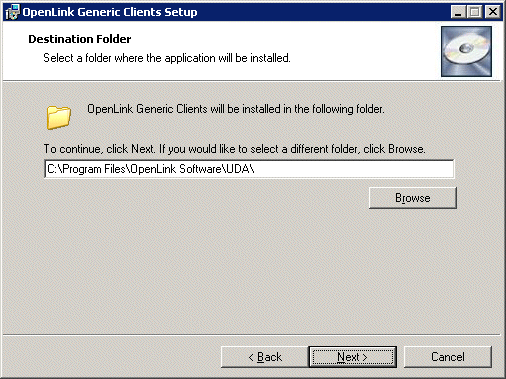
Next you have presented with the option to choose which components are to be installed:
Figure3.5.win64instmt5.gif
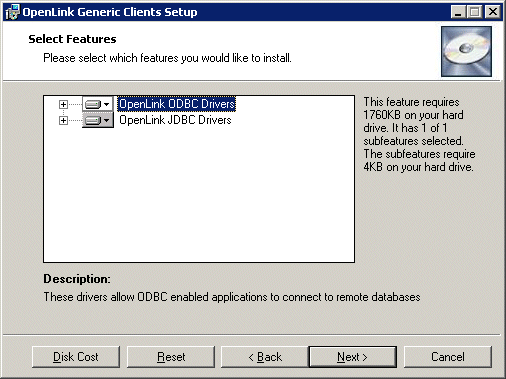
A final confirmation screen is displayed for review prior to performing the installation:
Figure3.6.win64instmt6.gif
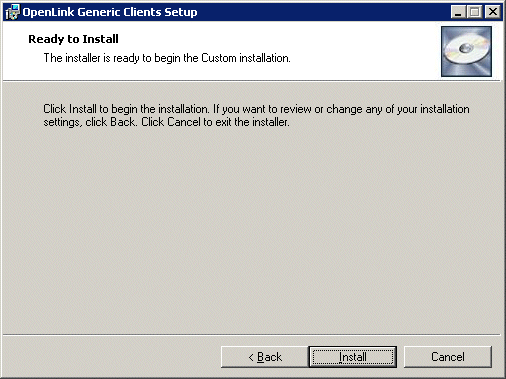
The installer status bar is then displayed indicating the progress and status of the the installation:
Figure3.7.win64instmt7.gif
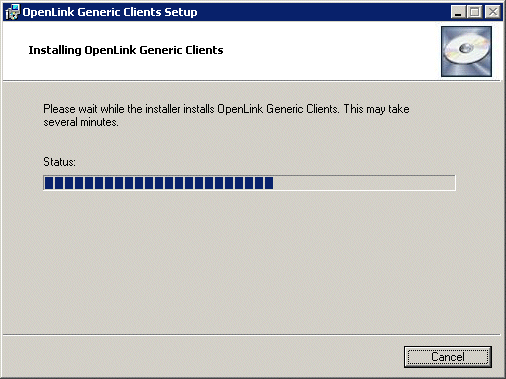
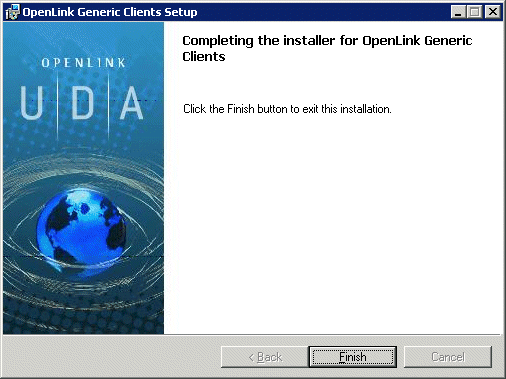
If the installation is successful a final dialog with be displayed indicating this:
Figure3.8.win64instmt8.gif