
3.1.4.ODBC System & User Data Sources
ODBC Driver Manager can create User, System, and File DSNs. Here are the steps for creating a User or System DSN:
-
Decide whether the DSN should be a USER DSN so that it is available for all users, or a USER DSN is required for access by the current user only.
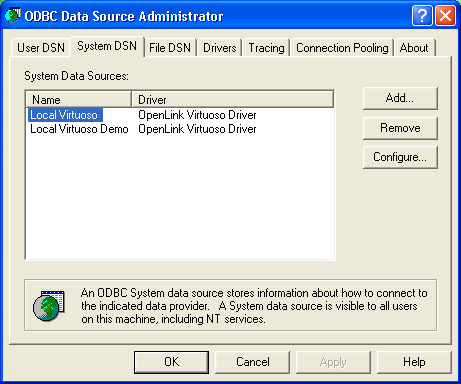
In the ODBC Driver Manager pick the SYSTEM or USER tab. In this example the SYSTEM tab is chosen, and the current System DSNs are shown:
Figure3.10.Data Source Configuration
-
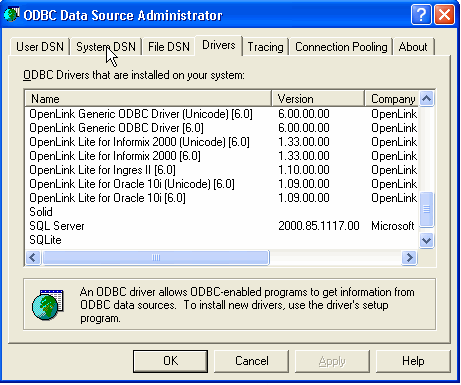
Pick the ODBC Driver to be used to create your ODBC DSN, in the case of the OpenLink Universal Data Access Driver Suite 5.0, this would be the Driver identified below as "OpenLink Generic ODBC Driver".
Figure3.11.Data Source Configuration
-
The ODBC Driver manager now launches the selected driver code so that the DSN may be configured. In this example it will present the OpenLink ODBC Data Source Configuration dialog (depicted below).
Figure3.12.Data Source Configuration
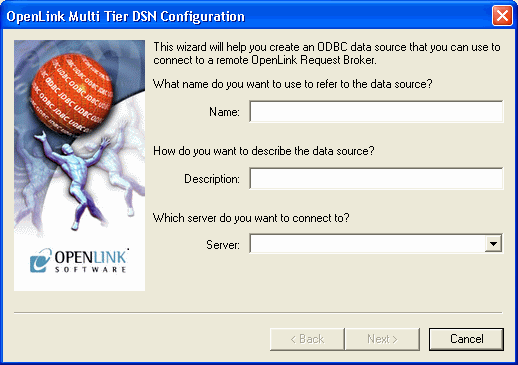
Configure the fields of the ODBC "System" or "User" DSN Configuration dialog in the manner explained below:
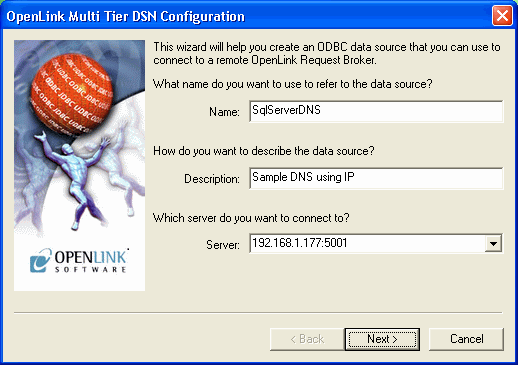
Name. (Datasource) The name of the ODBC DSN, this is how you will interact with the OpenLink ODBC Driver from within ODBC compliant applications once your ODBC DSN has been created.
Description. Additional information that further describes the ODBC DSN that you are creating.
Server. Selected Zero Configuration service name or
<hostname or IP
address>:<port>
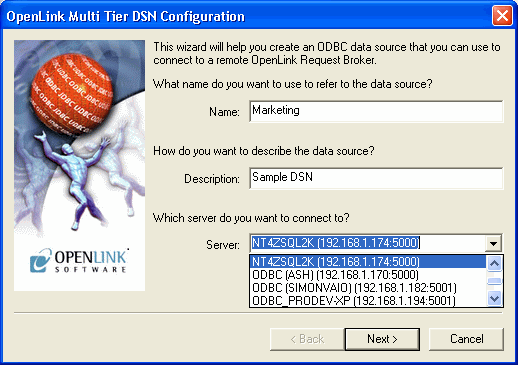
of running Broker.The easiest way to complete this field is to select a machine from the drop-down list-box. This list of servers is automatically generated by the Zero Configuration service, so you only need to chose which machine you wish to reach.
Alternatively, enter the hostname or IP address that identifies a Server Machine running OpenLink Server Components, that speak the OpenLink Data Access Protocol. Follow this with a colon and the TCP/IP Port number of the Broker to contact. This corresponds to the Listen parameter on the target Broker.
This example shall now assume the selection of a server from a picklist.
Figure3.13.Data Source Configuration
-
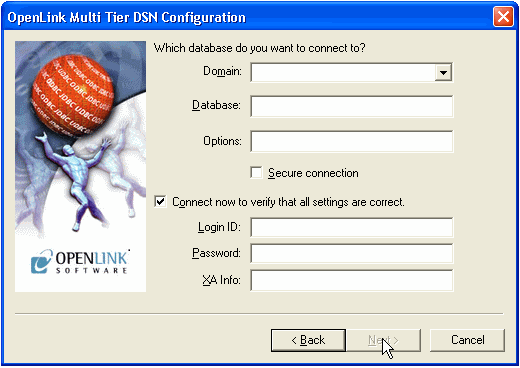
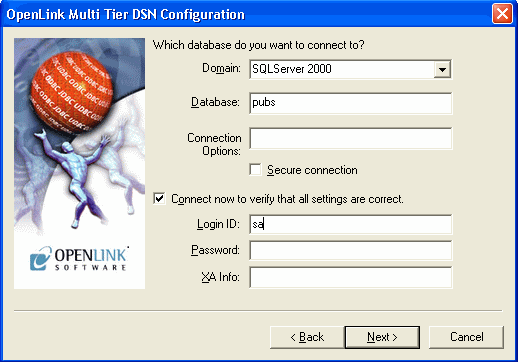
Now select the database and configuration details:
Domain
This is how you pick the Database Engine Type that your ODBC DSN is to be associated with e.g. Informix 7, Oracle 7, Progress 7 etc.
The default offered from the Zero Configuration is typically accepted. An alternative compatable Domain may be chosen for a specific customisation.
Database. This is how an actual database name within the Provider Type Domain is identified, for instance "stores7" indicates an "Informix 7" database called "stores7". This option corresponds to the Database parameter in the preference files.
Connection Options. This is where you place any database specific database connection options. This field in a majority of cases should be left blank by default.
Connect now..
When this tick box is checked, a test connection is made to verify the Data Source connection.
If there is no check then the Login ID and Password fields are ignored, and no test is performed.
Login ID. The default database UserID to use when logging on to a remote database engine (identified by the Domain above).
Password. The Password for the login of the above UserID.
Figure3.14.Data Source Configuration
-
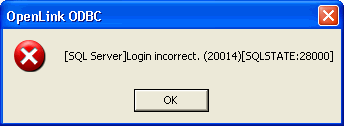
When a test connection fails, the error message is now displayed:
Figure3.15.Data Source Configuration
-
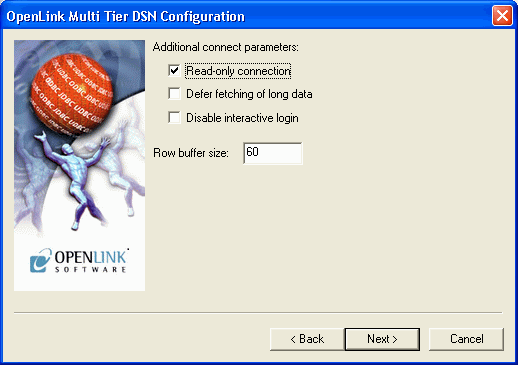
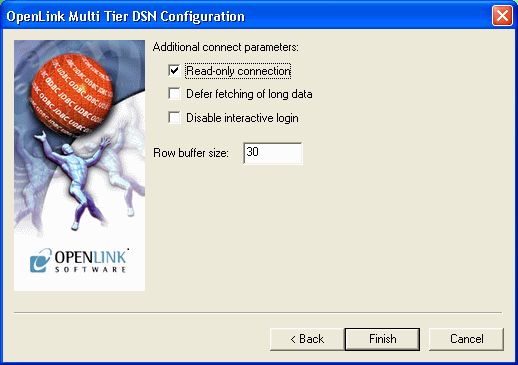
Now define additonal connection parameters:
Read-only connection. Specify whether the connection is to be "Read-only". Make sure the checkbox is unchecked to request a "Read/Write" connection.
Defer fetching of long data. Check this box to defer the fetching of long data.
Disable interactive login. Suppress the ODBC "Username" and "Password" login dialog box when interacting with your ODBC DSN from within an ODBC compliant application.
Row Buffer Size. This attribute specifies the number of records to be transported over the network in a single network hop. Values can range from 1 to 99.
Figure3.16.Data Source Configuration
-
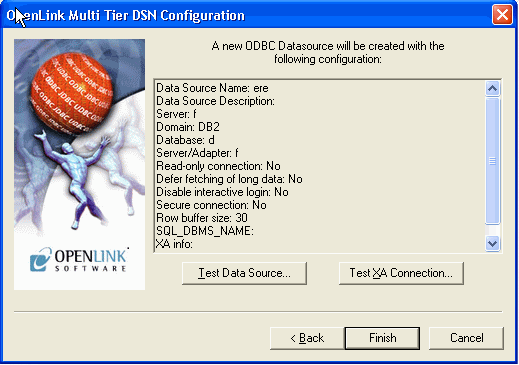
The list of parameters for the DSN are now shown. The Test Data Source button will trigger a test of the DSN using the existing login parameters.
Figure3.17.Data Source Configuration
-
If a test is requested, the results are shown:
Figure3.18.Data Source Configuration
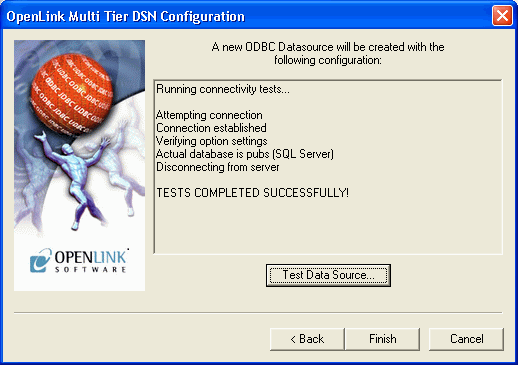
Press the Finish button to save the DSN.
-
This completes the DSN configuration. It will be listed in the ODBC Driver Manager.
Figure3.19.Data Source Configuration
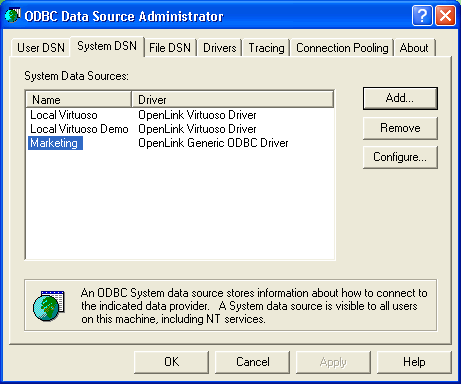
Manual Selection of Server
The previous example used a server that was picked from the list constructed by the zero configuration. The server you wish to use might not be in this list if it is not a local machine that can be discovered. In this case it is necessary to complete the server field manually with the host name or IP number, and the port number.
-
Complete the fields for Data Source Name and Description as before. In the server field, enter the TCPIP address and port of the server machine.
Figure3.20.Data Source Configuration
-
The connection parameter page will load without any fields completed.
Figure3.21.Data Source Configuration
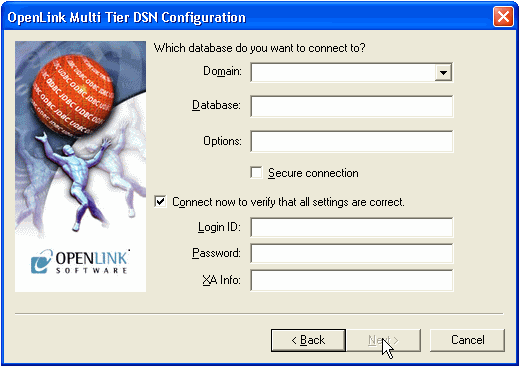
Complete the fields for database connection.
Figure3.22.Data Source Configuration
-
Complete the fields for additional connection parameters.
Figure3.23.Data Source Configuration
-
This completes the DSN configuration. It will be listed in the ODBC Driver Manager.