
5.2.1.Creating Data Sources Using iODBC Administrator
The OpenLink Lite Drivers for Unix can be installed within a previously installed Multi-Tier installation or completely standalone. If installed within a Multi-Tier installation the Lite Driver can share the Admin Assistant installed with the Multi-Tier for configuring data source. In the absence of a Multi-tier installation, an HTTP based iODBC Administrator is installed and used to configure the drivers. The download wizard for Unix Lite will always offer install.sh and the HTTP based iODBC Administrator, and then show the available Lite Drivers for the required operating system.
A Lite driver package contains only the driver and installation files, e.g. the sql_lt.taz file contains:
      bin/openlink.ini          Contains the Environment settings
      bin/inifile
      bin/freetds.conf          Part of the FreeTDS library
      lib/sql_st_lt.la
      lib/sql_st_lt.so          The actual lite driver
      scripts/SQLServer/oplrvc.sql
During the installation of the OpenLink Lite Drivers for Unix, the install.sh script will generate a file called bin/iodbc-admin-httpd.sh. This is a shell script used to start and stop the HTTP based iODBC Administrator. The usage is as follows:
      $ iodbc-admin-httpd.sh start  # Starts the HTTP based iODBC Administrator
      $ iodbc-admin-httpd.sh stop   # Tries to stop the HTTP based iODBC Administrator
      $ iodbc-admin-httpd.sh status # Shows if the program is running
Wizard Based Configuration
-
Start up the HTTP based iODBC Administrator, as explained above.
-
Open up your Internet Browser and then enter the following URL: http://localhost:8000/ (note the OpenLink HTTP based iODBC Administrator listens at port 8000 by default, this value is set at installation time).
-
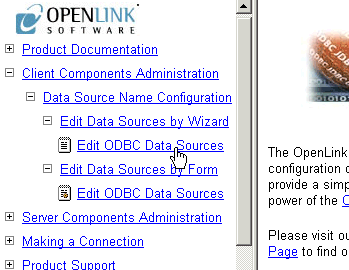
Expand the menu by clicking on the "Client Components Administration", then "Data Source Name Configuration", and "Edit Data Sources by Wizard".
Figure5.84.
-
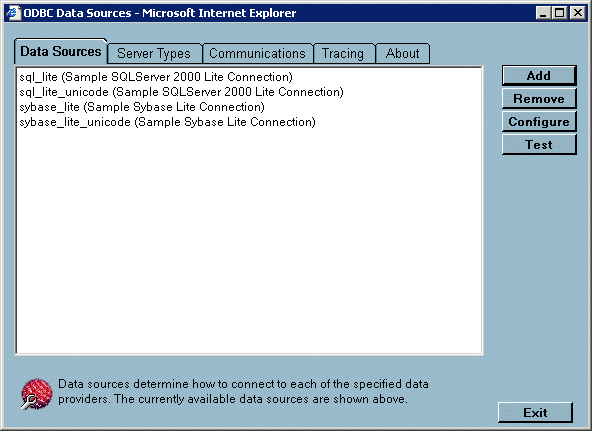
Click on the "Edit ODBC Data Sources" hyperlink, this takes you into the actual ODBC Data Source configuration wizard.
Figure5.85.
-
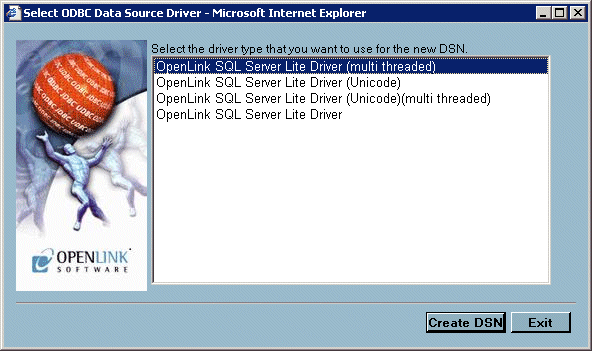
Click the "Add" button to commence the process of creating a new Lite ODBC DSN, the wizard presents you with a list of Lite Drivers installed on your system. Select the driver required. In this example the OpenLink SQL Server Lite Driver is highlighted. Then click on the "Next" button.
Figure5.86.
-
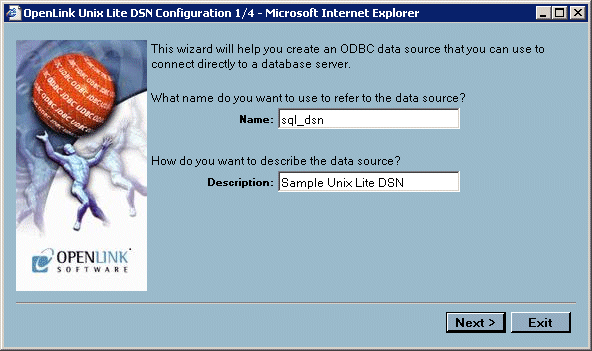
Enter values into the "Name" and "Description" fields as follows:
Name. Enter a value that uniquely identifies the DSN being created. This example uses the name "sqlserver_dsn" to indicate that this DSN will be connecting to SQL Server database.
Description. Enter a value that provides additional information that helps in describing the purpose of the DSN that you are creating.
Once completed click on the "Next" button.
Figure5.87.
-
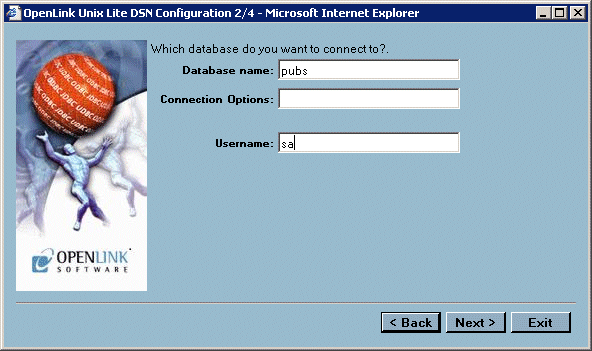
Enter values into the "Database Name", "Server", and "Username" fields as follows:
Database Name. Enter the name of the database you which to make a connection to. Note in the case of the ODBC-JDBC Bridge this would be the name of the JDBC Driver to be used.
Connection Options
Enter database server connection values for the database that your are connecting to.
The label shown named Server will change according to the ServerType selected on the previous wizard page to provide a more suitable cue. The table below shows the alternative descriptions and there significance.
Table5.1.OpenLink Lite for Unix Server Types
Server Type Label Name Description DB2 Server/Adapter Name of DB2 Instance. Informix Server Informix Connect connection parameters. Ingres & OpenIngres Ingres Net (vnode) Name of Ingres vnode to connect to. Oracle NET 8 Service Name Name of Oracle 8 service as defined with TNS Listener or Oracle 8 SID. Progress DB Connection Options Progress connection options. SQLServer Server SQLServer server name. ODBC-JDBC Bridge URL String JDBC Connect String
Username. Enter a valid username for the database that you are connecting to, you can leave this blank and be prompted for values at actual database connect time.
Click on the "Next" button.
Figure5.88.
-
Select the Environment section name used to identify the group of environment parameters for the Database. In most cases this does not need to be changed. For advanced use, multiple environments may be defined. The pick list of existing Environment groups contains only the currently defined Environments that are associated with the same Driver currently being configured. Choose from an existing environment, or create a new environment by entering a name.
Enter environment values into the text area as parameter=value with each parameter on a separate line.
Once completed click on the "Next" button.
Figure5.89.
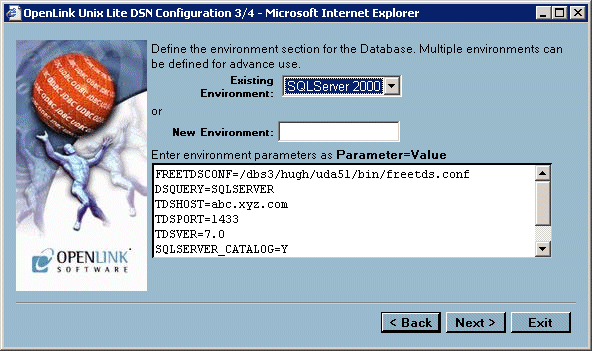
These environment varable values are database specific and are described in detail later in this section. The list below will allow you to quickly jump to the relevant section:
DB2 Informix Ingres & OpenIngres Oracle Progress SQL92 Microsoft or Sybase SQL Server ODBC-JDBC Bridge for Java -
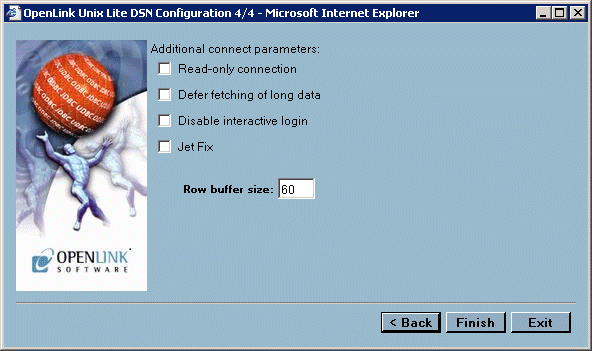
Enter values into the following fields:
Read-only connection. Check this box if you require a read only session.
Disable Interactive Login. Check this box if you do not want to be presented with a login dialog window.
Defer fetching of long data. Check this box to defer the fetching of long data. See the Release Notes section for more details.
Once completed click on the "Next" button.
Enter values into the "Row Buffer Size", and "Jet Fix" fields as follows:
Row Buffer Size. Enter a value that represents the number of records that you would like your ODBC driver to retrieve during each network hop. A network hop represents the number of times your OpenLink ODBC send a message across the network to retrieve records from your remote database server. The feature can be used to improve ODBC record retrieval performance.
Jet Fix. Check this box to overcome an old Jet Engine problem of large numeric types mapped to TEXT (drivers will return SQLServer as database type)
Once completed click on the "Finish" button to save the DSN.
Figure5.90.
-
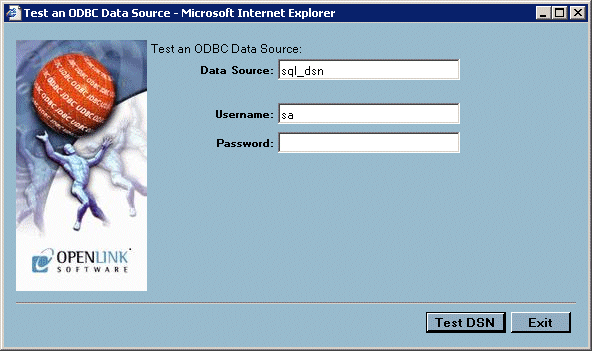
Now that the DSN has been saved, it can be verified. Select the DSN to test and hit the "Test" button .
Figure5.91.
-
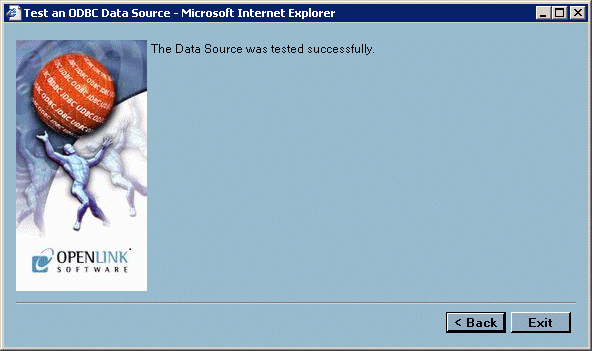
Click the "Test" button to actually commence the ODBC DSN Test process, you will be presented with dialogs that indicate success or failure at the end of this process.
Figure5.92.
-
Click on the "exit" button to exit the ODBC DSN configuration wizard
Form Based Configuration
The OpenLink HTTP based iODBC Administrator also allows the more experienced OpenLink ODBC user to manage ODBC DSNs via a forms based interface. Like the wizard based approach, this is done entirely from within your browser. In the sections that follow, a step by guide and illustrative screen shots are used to demonstrate the process of creating the same Lite ODBC DSN created in the prior section using the Wizard approach.
-
Start up the HTTP based iODBC Administrator, as explained earlier.
-
Open up your Internet Browser and then enter the following URL: http://localhost:8000/ (note the OpenLink HTTP based iODBC Administrator listens at port 8000 by default, this value is set at installation time).
-
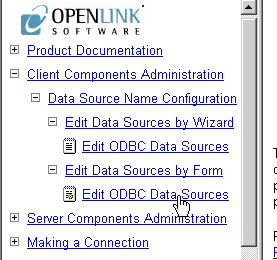
Expand the menu by clicking on the "Client Components Administration", then "Data Source Name Configuration", and "Edit Data Sources by Form".
-
Click on the "Edit ODBC Data Sources" hyperlink to commence the process of creating a new ODBC DSN.
Figure5.93.
-
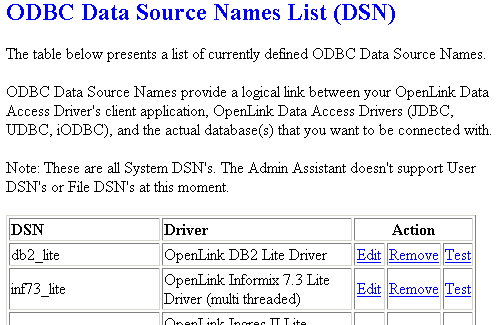
On the right side of the HTTP based iODBC Administrator pane is your start page for configuring Lite DSNs using the Forms approach. This page presents to you a list of currently configured ODBC DSNs on the machine. Click the "Add" hyperlink in the Action Column
Figure5.94.
-
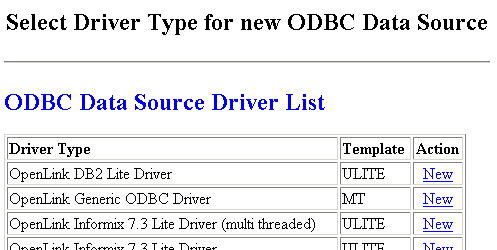
You are now presented with a table listing that comprises ODBC Drivers installed on your system, move on to the row that identifies the ODBC Driver that you will be creating your DSN for, then click on the "New" hyperlink.
Figure5.95.
-
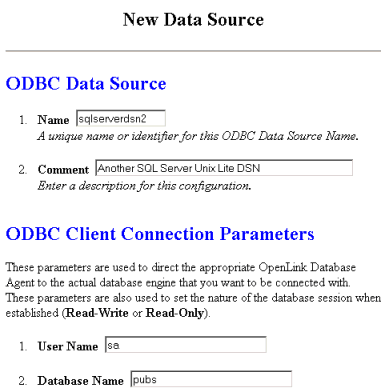
Enter values into the fields presented on the ODBC DSN form as follows:
Name. Enter a value that uniquely identifies the DSN being created. This example uses the name "sqlserver2" to indicate that this DSN will be connecting to SQL Server database.
Description. Enter a value that provides additional information that helps in describing the purpose of the DSN that you are creating.
Username. Enter a valid username for the database that you are connecting to, you can leave this blank and be prompted for values at actual database connect time.
Database Name. Enter the name of an actual SQL Server database.
Read-only connection. Check this box if you require a read only session.
No Login Dialog Box. Check this box if you do not want to be presented with a login dialog window.
Defer fetching of long data. Check this box to defer the fetching of long data. See the Release Notes section for more details.
Jet Fix. Check this box to overcome an old Jet Engine problem of large numeric types mapped to TEXT (drivers will return SQLServer as database type)
Server. Enter database server connection values for the database that your are connecting to.
Row Buffer Size. Enter a value that represents the number of records that you would like your ODBC driver to retrieve during each network hop. A network hop represents the number of times your OpenLink ODBC send a message across the network to retrieve records from your remote database server. The feature can be used to improve ODBC record retrieval performance.
Environment
Select the Environment section name used to identify the group of environment parameters for the Database. In most cases this does not need to be changed. For advanced use, multiple environments may be defined. The pick list of existing Environment groups contains only the currently defined Environments that are associated with the same Driver currently being configured. Choose from an existing environment, or create a new environment by entering a name.
Enter environment values into the text area as parameter=value with each parameter on a separate line.
These environment varable values are database specific and are described in detail later in this section. The list below will allow you to quickly jump to the relevant section:
DB2 Informix Ingres & OpenIngres Oracle Progress SQL92 Microsoft or Sybase SQL Server ODBC-JDBC Bridges for Java Figure5.96.
-
Click on the "Add" button at the foot of the page to complete the creation of your new ODBC DSN.
-
The DSN may then be tested, or you can return to the DSN list.