
8.6.2.How OpenLink's Data Access Drivers Connect To Your Progress Database
A process diagram is provided below to assist with the understanding of how the various OpenLink components work in concert, with the sole objective of providing you with Secure, High-Performance, and Highly Configurable access to Progress Database Engines.
Figure8.43.Progress Connection Conceptual Diagram
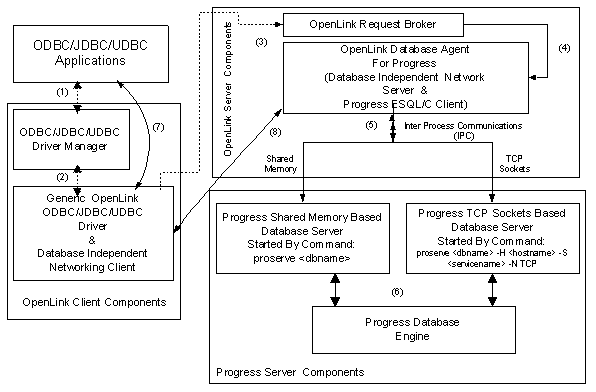 |
The steps explained:
-
An ODBC/JDBC/UDBC Application uses the relevant data access standards Driver binding mechanism to locate and associate itself with the relevant OpenLink Driver.
-
The chosen OpenLink Driver then uses its in-built Database Independent Communications layer to broadcast an OpenLink Database Agent service request to the OpenLink Request Broker.
-
The OpenLink Request Broker analyzes the request in step 3 and then determines from the information obtained from the OpenLink Sessions Rules Book (the file oplrqb.ini), if an OpenLink Database Agent for Progress is available. If the OpenLink Request Broker determines that a Progress Database Agent does not exist, it will indicate it findings via an error condition and resultant error message viewable via your ODBC/JDBC/UDBC application.
-
The OpenLink Request Broker initializes a new OpenLink Database Agent For Progress instance or associates the new Progress Database session request with an existing OpenLink Database Agent For Progress instance.
-
OpenLink Database Agent For Progress instance uses your chosen Inter Process Communications (IPC) mechanism to initialize a session with a Progress Database Server that supports the chosen IPC mechanism. The default mechanism chosen by the OpenLink Database Agent For Progress is shared memory. You can opt to use TCP sockets by doing one of the following (as long as you have started a TCP sockets based Database Server for your Progress Database Engine by using the command:
proserve <dbname> -S <service name> -N TCP H localhost):
Place the Progress Database Connection Parameters
- S <service name> -N TCP H localhostinto the "Options" field of the OpenLink ODBC Data Source Configuration Utility, should you be using OpenLink ODBC Drivers.Place the Progress Database Connection Parameters
- S <service name> -N TCP H localhostas "/OPTIONS" JDBC URL attribute values, should you be using OpenLink Drivers for JDBC.Place the Progress Database Connection Parameters- S <service name> -N TCP H localhostas "OPTIONS" connect string values, should you be using OpenLink UDBC or OpenLinks Unix based ODBC Drivers.The OpenLink Session Rules Book (oplrqb.ini) allows you to control this behavior centrally, alleviating yourself from the cost of maintaining numerous client based connection parameters. This is done by placing the Progress Database Connection Parameters
- S <service name> -N TCP H localhostas "ConnectOptions" section-key values within the Progress Database Agent configuration ("[generic_prox]") section of the Session Rules Book. -
At this point your Progress Database Session is established
-
ODBC/JDBC/UDBC Driver binding and database session establishment is completed, and the ODBC/JDBC/UDBC Driver Manager is no longer required while the Progress Database Session remains open.
-
The OpenLink Request Broker like the Driver Managers in step 7 is no longer required (until session closure) while data is being exchanged directly between ODBC/JDBC/UDBC applications, the OpenLink Database Agents for Progress, and your Progress Database Engine.