
5.1.7.Other Progress
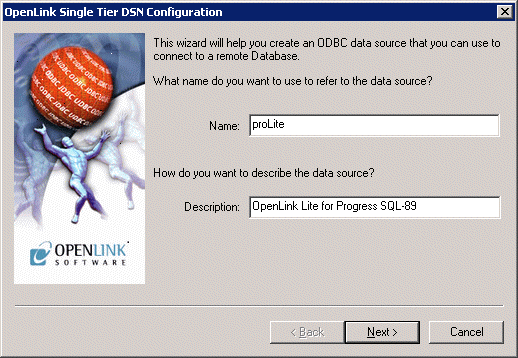
Progress tab
Figure5.38.Progress tab
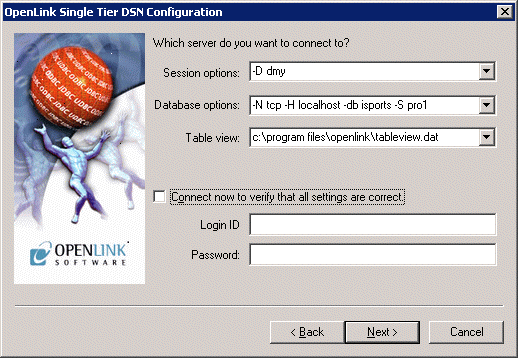
Enter details here to specify Progress connection information.
-
Session Options
Any Progress server startup options are accepted in this box. Note: These options are required for the Small Client driver only.
Typical options could be:
-SV -S <service> -H <hostname> -N TCP
-
Database Options
Any valid Progress Database connection options. See your Progress manual for a complete list of accepted options.
When using the Small Client driver, enter the following minimum database information in this box:
-db <dbname>
When using the Large Client driver, enter the following minimum database information in this box:
-db <dbname> -S <service> -H <hostname> -N <protocol>
Note: The <service> entry must meet the following requirements:
-
It must be listed in the Progress database server's /etc/services file, with a corresponding TCP port to which to bind.
-
It must be listed with the same name as above in your Windows \system32\drivers\etc\services file, matching the TCP port used for the database server's Progress service name.
To connect to multiple databases and make use of array fields see the tableview guide
-
-
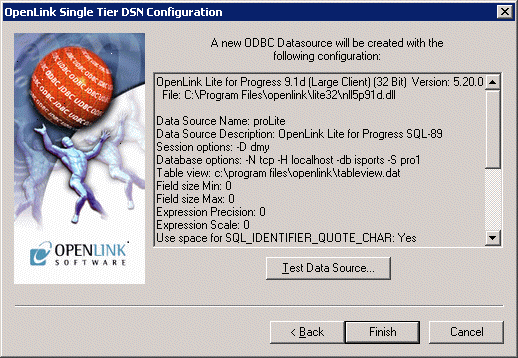
Table View. The full path and file name of the .dat 'tableview' file created after running the setup.p applications. See tableview guide for more information.
Additional Progress-specific parameters
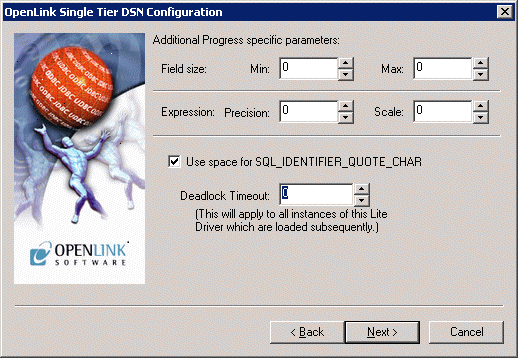
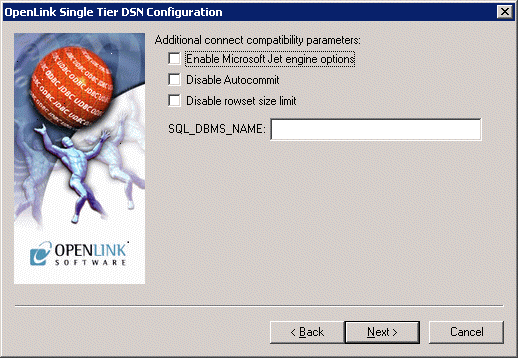
Figure5.39.Additional Progress-specific parameters tab
-
Field size. Enter the minimum and maximum sizes for a char(N) field here
-
Expression Precision & Scale. This is the default precision and scale for anonymous numeric fields in the resultset.
-
Use space for SQL_IDENTIFIER_QUOTE_CHAR. Check this to enable a workaround for Business Objects' handling of the space-character in quoting an identifier.
Connecting Progress Lite to Multiple Databases and Gaining Access to Arrays
Utility and functionality for the Progress Driver that enables the user to connect to multiple databases and use array fields. This is only applicable to drivers not built against Progress SQL92 Libraries.
After installing a Progress Lite Driver you should find the following files in the lite32 directory:
setup.p
setup.i
oplrvc1.p
oplrvc2.p
setup.p is a Progress script program. When the program runs it will ask you what databases you wish to connect to and generate a catalog file of all the databases and tables within into a tableview file (.dat), and will create its associated parameter file (.pf).
Doing this allows you to connect to multiple databases, allows you to see all the tables in all databases from SQLTables, and allows you to use arrays fields through ODBC.
Prior to running this program you must ensure that all database servers for the databases you wish to include are running since the program will need to connect to them.
Make sure that your $DLC environment variable is set correctly to point to your DLC directory.
e.g. DLC=/dbs/progress/dlc
export DLC
Go to the openlink/lite32 directory, and type the following:
$DLC/bin/pro -p setup.p
![[Note]](images/note.png) |
Note: |
|---|---|
|
This may vary between versions. In Progress 6, pro is in the dlc directory not dlc/bin. |
You may also need to set a PROPATH environment variable to include the current working directory and the directory containing the setup.p utility files.
You will get the following screens:
.       @@@@@@   @@@@@@   @@@@@@@   @@@@@   @@@@@@   @@@@@@@   @@@@@    @@@@@
       @     @  @     @  @     @  @     @  @     @  @        @     @  @     @
      @     @  @     @  @     @  @        @     @  @        @        @
     @@@@@@   @@@@@@   @     @  @  @@@@  @@@@@@   @@@@@     @@@@@    @@@@@
    @        @   @    @     @  @     @  @   @    @              @        @
   @        @    @   @     @  @     @  @    @   @        @     @  @     @
  @        @     @  @@@@@@@   @@@@@   @     @  @@@@@@@   @@@@@    @@@@@
                           Progress Software Corporation
                                    14 Oak Park
                            Bedford, Massachusetts 01730
                                    617-280-4000
       PROGRESS is a registered trademark of Progress Software Corporation
      Copyright 1984,1985,1986,1987,1988,1989,1990,1991,1992,1993,1994,1995
                        by Progress Software Corporation
                             All Rights Reserved
PROGRESS Version 7.3C as of Thu Jun 29 15:05:14 EDT 1995
Followed by:
+-----------------------------------------------------+
| Enter a number of databases you want to connect to. |
| The first database is your master database.         |
+-----------------------------------------------------+
+-----------------------------------------------------------------------------+
| # DbName                         Connect String                           OK|
|-- ------------------------------ ---------------------------------------- --|
| 1 ______________________________ ________________________________________ __|
|                                                                             |
|                                                                             |
|                                                                             |
|                                                                             |
|                                                                             |
|                                                                             |
|                                                                             |
|                                                                             |
|                                                                             |
+-----------------------------------------------------------------------------+
Enter data or press PF4 to end.
At this point you will need to give the program information to contact the databases you want to include here. As shown below.
+-----------------------------------------------------+
| Enter a number of databases you want to connect to. |
| The first database is your master database.         |
+-----------------------------------------------------+
+-----------------------------------------------------------------------------+
| # DbName                         Connect String                           OK|
|-- ------------------------------ ---------------------------------------- --|
| 1 /users/progress/dbs/pro7test__ -N tcp -H 194.152.95.26 -S pro7test_____ __|
|                                                                             |
|                                                                             |
|                                                                             |
|                                                                             |
|                                                                             |
|                                                                             |
|                                                                             |
|                                                                             |
|                                                                             |
+-----------------------------------------------------------------------------+
Enter data or press PF4 to end.
After entering the line of information press return. There will be a little pause while the program checks that the database server is running and can be contacted. When this is verified OK will appear at the end of the line.
+-----------------------------------------------------+
| Enter a number of databases you want to connect to. |
| The first database is your master database.         |
+-----------------------------------------------------+
+-----------------------------------------------------------------------------+
| # DbName                         Connect String                           OK|
|-- ------------------------------ ---------------------------------------- --|
| 1 /users/progress/dbs/pro7test__ -N tcp -H 194.152.95.26 -S pro7test_____ OK|
|                                                                             |
|                                                                             |
|                                                                             |
|                                                                             |
|                                                                             |
|                                                                             |
|                                                                             |
|                                                                             |
|                                                                             |
+-----------------------------------------------------------------------------+
Enter data or press PF4 to end.
The cursor will move to the next line. Repeat the above procedure for each database. Press PF4 when finished. You will then need to supply the name for the .dat and .pf files to be created.
+-----------------------------------------------------+
| Enter a number of databases you want to connect to. |
| The first database is your master database.         |
+-----------------------------------------------------+
+-----------------------------------------------------------------------------+
| # DbName                         Connect String                           OK|
|-- ------------------------------ ---------------------------------------- --|
| 1 /users/progress/dbs/pro7test__ -N tcp -H 194.152.95.26 -S pro7test_____ OK|
| 2 ______________________________ ________________________________________ __|
|                                                                             |
|                                                                             |
|                                                                             |
|                                                                             |
|                                                                             |
|                                                                             |
|                                                                             |
|                                                                             |
+-----------------------------------------------------------------------------+
Basename for .pf and .dat files_____________________
Enter data or press PF4 to end.
After a brief period the program will have finished:
+-----------------------------------------------------+
| Enter a number of databases you want to connect to. |
| The first database is your master database.         |
+-----------------------------------------------------+
+-----------------------------------------------------------------------------+
| # DbName                         Connect String                           OK|
|-- ------------------------------ ---------------------------------------- --|
| 1 /users/progress/dbs/pro7test__ -N tcp -H 194.152.95.26 -S pro7test_____ OK|
| 2 ______________________________ ________________________________________ __|
|                                                                             |
|                                                                             |
|                                                                             |
|                                                                             |
|                                                                             |
|                                                                             |
|                                                                             |
|                                                                             |
+-----------------------------------------------------------------------------+
Creating .pf file to use
Creating .dat file with table information
Procedure Complete. Press space bar to continue.
Now you have to integrate these files into your system.
In the Lite Driver setup dialog box you will find an option box called Table View. In this field place:
<full path and file name to .dat file>
Now you can use in the Connection Options, only:
-pf <full path and file name to .pf file>
To resolve you connection parameters since they are include in this file.