
8.2.14.OpenLink ODBC-JDBC Agent Bridge Installation & Configuration
The OpenLink ODBC-JDBC Agent bridge is a JDBC Proxy Service enabling ODBC connectivity to a JDBC data repository via an existing JDBC driver for the data repository. Thus essentially it is the reverse of the more traditional JDBC-ODBC driver bridge used for accessing databases via JDBC.
Typical Utilization:
A typical and very popular use of the OpenLink ODBC-JDBC Agent bridge would be to access a Database written purely in Java for which a JDBC driver is the only data access mechanism available. As databases written purely in Java become more popular the use of the ODBC-JDBC bridge will become more relevant.
Installation:
After downloading the OpenLink Data Access Driver Suite for your chosen desktop operating system please perform the following steps:-
-
Move into your temporary installation directory
-
Extract the contents of the OpenLink ZIP archive into the directory in step 1
-
Double click on the program "setup.exe"
-
Follow the on-screen instructions
Post Installation & Pre Configuration Check List
-
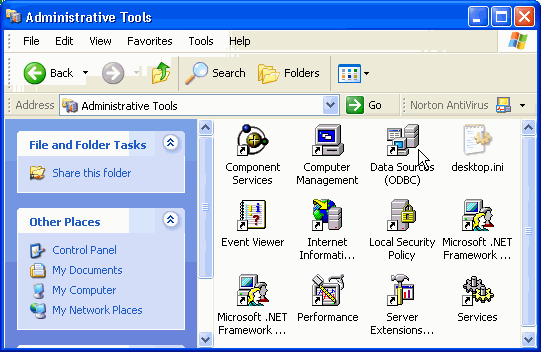
Verify that the ODBC Driver Manager exists on your system by opening up your desktop's control panel group
Figure8.28.Admin Assistant
-
Verify the Java environment for the JDBC driver to be used is configured. In particular the CLASSPATH and PATH environment variables must be set correctly for a successful connection. If this is not set in the user's environment by default, you can configure this via the OpenLink session Rules Book (oplrqb.ini) via the relevant [Environment JDBCXX] section where XX = 12 or 13, indicating the version of the JDK in use. Example here is wrapped across lines for presentation.
[Environment JDBC12] CLASSPATH = .;D:\Software\oracle\ora81\jdbc\lib\classes12.zip;D:\Softwa re\oracle\ora81\jdbc\lib\nls_charset12.zip;c:\program files\openlink\vi rtuoso 2.0\jdk1.2\virtjdbc2.jar;c:\program files\openlink\jdk1.2\opljdb c2.jar PATH = D:\Software\oracle\ora81\bin;D:\Software\oracle\ora81\jdbc\lib;D :\Software\jdk1.2\jre\bin;D:\Software\jdk1.2\jre\bin\classic;C:\WINNT\S YSTEM32;C:\WINNT -
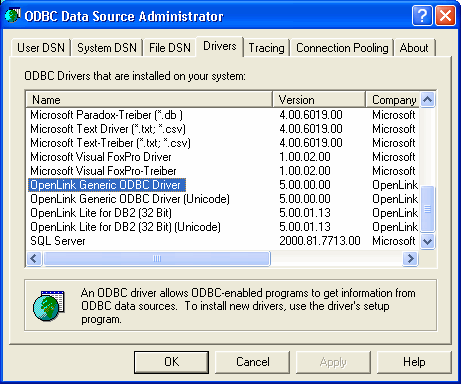
Verify the existence of an OpenLink ODBC Driver installation on your PC
Figure8.29.Admin Assistant
Configuring An OpenLink ODBC-JDBC Agent Bridge Based ODBC Data Source Name (DSN)
-
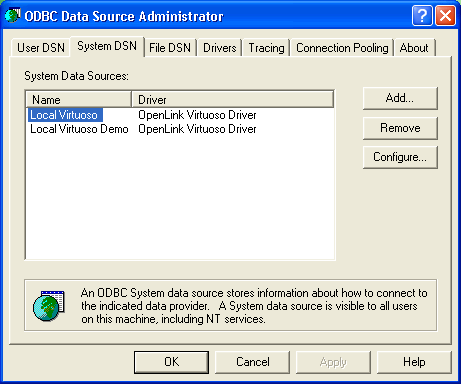
Open up the ODBC Administrator within your desktop control panel, and then Click on the "Add" button to indicate that you want to add a new ODBC DSN to the current list of installed ODBC DSNs
Figure8.30.Admin Assistant
-
Click on the appropriate ODBC Driver that you will be associating this new ODBC DSN with, in this case the "OpenLink Generic 32 Bit Driver v4.0"
Figure8.31.Admin Assistant

-
Choose a Name for your OpenLink ODBC DSN and then type it into the "Name" field, the example below presumes the DSN is to be called "JDBC Agent"
Type a comment to describe the DSN.
Enter the name and port of the machine hosting the OpenLink ODBC agent in the "Server" field. The example below presumes that the machine network alias for your desktop computer is "mypc" (note: you can also use the machines actual IP address or even use the "localhost" account if you are connecting to a local as opposed to remote JDBC driver). The port is the default of 5000.
Figure8.32.Admin Assistant

-
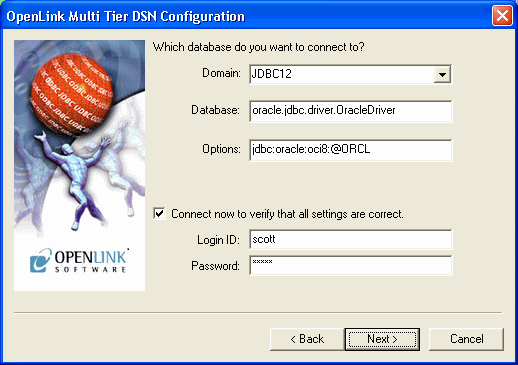
Choose an OpenLink "Server Type" of "JDBCXX" from the "Domain" listbox where XX can be 12 or 13 to represent a JDK 1.2 or 1.3 installation is in use.
Type the name of the JDBC driver you would like to use for your connection into the "Database" field. The example below assumes you are connecting to Oracle 8i using the JDBC driver provided by Oracle named "oracle.jdbc.driver.OracleDriver".
Type the JDBC connect string for the Database you wish to connect to in the "Options" field. The example below assumes you are connecting to Oracle 8i using the JDBC connect string of "jdbc:oracle:oci8:@ORCL".
When the "Connect now.." tick box is checked, a test connection is made to verify the Data Source connection.
If there is no check then the Login ID and Password fields are ignored, and no test is performed.
The Login ID is the default database UserID to use when logging on to a remote database engine (identified by the Domain above).
Password is for the login of the above UserID.
Figure8.33.Admin Assistant
-
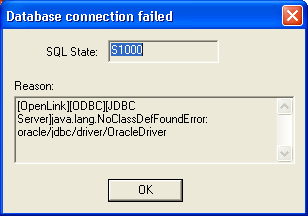
If a test is perfomed, then errors are reported like in this example:
Figure8.34.Admin Assistant
-
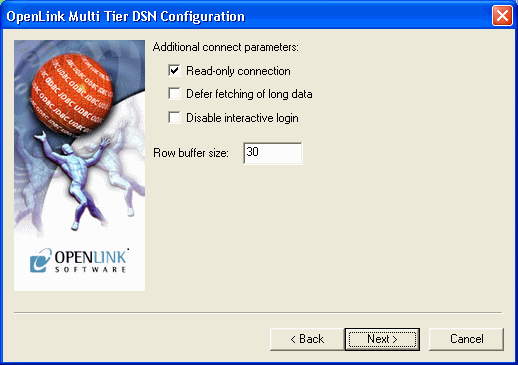
Now define additonal connection parameters:
Read-only connection. Specify whether the connection is to be "Read-only". Make sure the checkbox is unchecked to request a "Read/Write" connection.
Defer fetching of long data. Check this box to defer the fetching of long data.
Disable interactive login. Suppress the ODBC "Username" and "Password" login dialog box when interacting with your ODBC DSN from within an ODBC compliant application.
Row Buffer Size. This attribute specifies the number of records to be transported over the network in a single network hop. Values can range from 1 to 99.
Figure8.35.Admin Assistant
-
The details of the DSN are now shown. To test the DSN, press the Test Data Source button.
Figure8.36.Admin Assistant

-
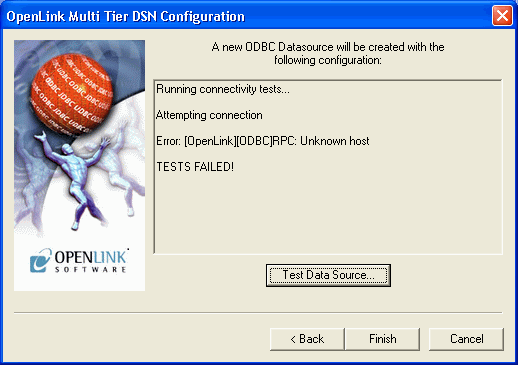
If a Test is requested then the status of the DSN test connection is shown. Here is an example error message:
Figure8.37.Admin Assistant
-
Click on the "Finish" button to complete the creation of your new OpenLink ODBC DSN.
Making A Test Connection To Your OpenLink ODBC-JDBC agent ODBC DSN
To verify that your installation and configuration is ready for use, please follow the steps below in order to make a test connection to the OpenLink ODBC DSN that you have just created:-
-
Start the OpenLink Request Broker in debug mode, this can be done from a DOS shell by executing the command : oplrqb -dv or from your Services Panel (note you must change the startup mode to manual to enable the OpenLink Request Broker run in Debug Mode)
-
Locate the program "VBDemo" or "C++ Demo" situated within the "OpenLink Data Access Drivers" group on your desktop (Windows start menu item)
-
Attempt to make a connection to the OpenLink ODBC DSN
-
If step 3 is successful and you see data exchanged between your ODBC Client and your OpenLink ODBC DSN, exit the ODBC application, and then shutdown and restart the Broker without the Debug Mode options using the command: oplrqb -v. If step 3 is unsuccessful repeat step 3 and then capture the Request Broker output and proceed to instigating contact with OpenLink Technical support via the OpenLink Support Page
-
Establish connection between your own ODBC Applications and the OpenLink ODBC DSN created in step 3
-
Shutdown the Request Broker using the command: oplshut -f
Adding An OpenLink ODBC-JDBC Agent To An Early OpenLink System
-
Place the ODBC-JDBC Agent executable in the openlink/bin sub-directory
-
Edit the OpenLink "Session Rules" Book (the file oplrqb.ini) using a text editor
-
Insert a new OpenLink Domain alias at the top of the "[Domain Alias]" section of the Rule Book in the manner depicted below:
JDBC12 = jdbc12
-
Insert a new OpenLink Session Mapping rule to the top of the "[Mapping Rules]" section of the Rule Book in the manner depicted below:
jdbc12:*:*:*:*:*:* = accept generic_jdbc12
-
Then create a new OpenLink Agent section as follows:
[generic_jdbc12] Program = jdbc12_mv.exe Environment = JDBC12 ReUse = always![[Note]](images/note.png)
Note: Program key must be set to the exact file name. (For Unix this would be jdbc12_mv)
-
Then create a new OpenLink Environment section as follows: (lines wrapped for presentation here)
[Environment JDBC12] CLASSPATH = .;D:\Software\oracle\ora81\jdbc\lib\classes12.zip;D:\Softwa re\oracle\ora81\jdbc\lib\nls_charset12.zip;c:\program files\openlink\vi rtuoso 2.0\jdk1.2\virtjdbc2.jar;c:\program files\openlink\jdk1.2\opljdb c2.jar PATH = D:\Software\oracle\ora81\bin;D:\Software\oracle\ora81\jdbc\lib;D :\Software\jdk1.2\jre\bin;D:\Software\jdk1.2\jre\bin\classic;C:\WINNT\S YSTEM32;C:\WINNT -
Save the file
-
Shutdown and restart your OpenLink Request Broker.
ODBC-JDBC agent
Table8.17.Default Rule Book settings
|
Rule Book Section & parameters |
Default Rule Book Settings |
Notes |
|---|---|---|
|
[Environment Jdbc12*] [Environment Jdbc13*] |
Parameters are common to JDBC 1.2 and 1.3 | |
|
JET_SQLSTATISTICSOFF= |
FALSE |
If it is set to 'TRUE', the function SQLStatistics returns an empty ResultSet. It helps to resolve the problem with the SQLStatistics for some jdbc drivers. |
|
JET_DROPCATALOGFROMDBMETACALLS= |
FALSE |
If it is sets to 'TRUE', the NULL will be assigned to the field 'Catalog' in the ResultSet of : SQLTables, SQLColumns & SQLStatistics calls. |
|
JET_DROPSCHEMAFROMDBMETACALLS= |
FALSE |
If it is sets to 'TRUE', the NULL will be assigned to the field 'Schema' in the ResultSet of : SQLTables, SQLColumns & SQLStatistics calls. |
|
JET_NOSUPPORTOFQUOTEDIDENTIFIER= |
FALSE |
If it is sets to 'TRUE', the call SQLGetInfo for 'SQL_IDENTIFIER_QUOTE_CHAR' will return the space (" "). It can be used if DBMS doesn't support quoted SQL like select * from "account" |
|
PATCHNULLSIZEOFSQLCHAR= |
If DBMS is returning a field of type SQLCHAR or SQLVARCHAR with zero size, the size will be replaced with the value of PATCHNULLSIZEOFSQLCHAR |
Typical settings for PointBase, HyperSonic and InstantDb are as follows:
          [Environment Jdbc12PointBase]
          ;CLASSPATH =.;e:\java\pointbase\embedded\classes\pbembedded34EV.jar
          ;PATH =
          JET_DROPCATALOGFROMDBMETACALLS = YES
          JET_DROPSCHEMAFROMDBMETACALLS =  YES
          JET_NOSUPPORTOFQUOTEDIDENTIFIER = YES
          [Environment Jdbc12HyperSonic]
          ;CLASSPATH = .;e:\java\hypersonic\demo\hsql.jar
          ;PATH =
          PATCHNULLSIZEOFSQLCHAR = 4096
          JET_SQLSTATISTICSOFF = YES
          [Environment Jdbc12InstantDB]
          ;CLASSPATH = .;e:\InstantDB\Classes\idb.jar
          ;PATH =
          JET_NOSUPPORTOFQUOTEDIDENTIFIER = YES
          JET_DROPSCHEMAFROMDBMETACALLS =  YES